1. The old cluster’s /home directories are mounted on the new cluster in /isilon/home/. If you can find your files in this directory, then you can directly copy your files from /isilon/home/ to your /home or /project folders on the new cluster.
Contents of the /isilon/home/ folder is shown below:
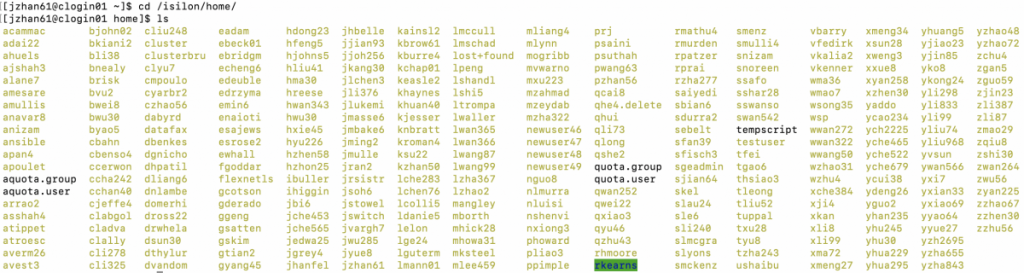
For example, I find my files on the old cluster located at /isilon/home/jzhan61.
To migrate my files from the old cluster to my /home directory on the new cluster, I will type cp -r /isilon/home/jzhan61 /home/jzhan61.
[jzhan61@clogin01 home]$ cd /isilon/home/jzhan61
[jzhan61@clogin01 jzhan61]$ pwd
/isilon/home/jzhan61
[jzhan61@clogin01 jzhan61]$ cp -r /isilon/home/jzhan61 /home/jzhan61/
If you cannot find your files in /isilon, then proceed to step 2.
2. Copy files remotely from the old cluster to the new cluster using scp or rsync. In this tutorial, rsync is used for demonstration since it can resume interrupted file transfers. The syntax is rsync -avr username@RemoteHost:/your/folder/to/copy /your/destination/folder
For example, if I did not find my files in /isilon, I will use the command below:
$ cd $HOME
$ pwd
/home/jzhan61
$ rsync -avr jzhan61@hpc5.sph.emory.edu:/home/jzhan61 /home/jzhan61
After you typed the rsync command, it will ask for your password to the old cluster for authentication. Once you input your password correctly, the transfer will start. If you only have up to a few Gb data to migrate, then you can run the rsync command directly on the login node. Otherwise, you need to initiate the transfer within a SLURM job to avoid jamming the login node.
To transfer files using rsync within a SLURM job, you need to first setup passwordless ssh following the instructions in this link.
Next, create a file named ‘transfer.sh’ with contents below:
#!/bin/bash
#SBATCH -N 1                    #Request for 1 node
#SBATCH -n 1                    #Request for 1 core
#SBATCH --mem=10G               #Request for 10G memory
#SBATCH -p week-long-cpu        #Request for week-long-cpu partition
#SBATCH --time=48:00:00         #Request for 48 hours runtime
#SBATCH -e job.%J.err           #Error information
#SBATCH -o job.%J.out           #Output information
#SBATCH --mail-type=ALL         #Email all events
#SBATCH --mail-user=YourEmail@emory.edu   #Address for notification

rsync -avr jzhan61@hpc5.sph.emory.edu:/home/jzhan61 /home/jzhan61
Please tweak the parameters in the above script to accommodate your own need.
Once the file is created, submit it to the cluster using sbatch transfer.sh.
[jzhan61@clogin01]$ sbatch transfer.shNow your files will be transferred in the background and you will get an email notification when it’s done.
If you need help, please send an email to jingchao.zhang@emory.edu.