

Course shells for Spring ’26 are now available in Canvas. If you are reusing content from prior semesters for your course(s), these tips will save you time and help you avoid potential problems. You are welcome to schedule an appointment with one of our Teaching and Learning Technology team members to walk through these tasks and tools with you.
The Steps
- TidyUp – Remove unneeded or outdated pages and files
- Import course content
- Use the Multi-Tool to reorder and rename Module items
- Update Assignment due dates with one of the bulk edit tools
- Remove or post-date Announcements
- Edit and organize your course menu
- Use UDOIT to scan your course for accessibility issues
- Check for broken links with the Link Validation tool
Tidy Up
When courses are reused for multiple semesters they can become cluttered with outdated and duplicated materials. These unneeded items can cause confusion and errors and even cause your course to load more slowly. You can clean up the source course before you do your import or you can clean up the destination course after you import. Whichever way you choose to do it, it is recommended that you clean up the content before you start updating the imported content.
To make the task much easier we have a tool called, TidyUp. TidyUp scans your course content and generates a list of all of your course items. You can view and filter the items to identify content that is no longer needed.

Import Course Content
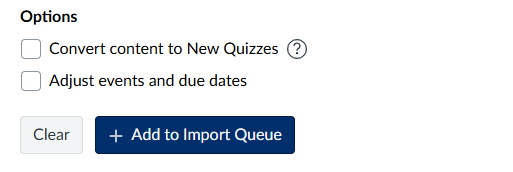
Visit How do I copy content from another Canvas course using the Course Import tool? for detailed instructions. Note the option for removing or adjusting due dates and the option that says, “Convert content to New Quizzes”. Selecting this option will convert quizzes that are in the Classic Quiz format into the New Quizzes format.
The Multi-Tool
The Multi-Tool, part of the suite of CidiLabs tools that we have embedded in Canvas, is a big time saver when it comes to setting up new content or tweaking imported content. There are 3 functions in the tool that you may find useful for efficiently editing your imported content. The Module Builder is particularly useful. You can use it to rename, reorder, remove and add items to your modules in one place without having to open > edit > save each item individually. The Due Date Modifier lets you change all of your assignment dates in one place. This tool allows you to change due dates, availability dates and the ‘Show Answers’ dates in your quizzes. When you include Announcements in a course import, be aware that all of the imported announcements from your previous semester are going to be visible to your current students. Since Announcements often contain a lot of carefully written content, instructors like to keep that content for reuse. You can use the Delayed Announcement Modifier to selectively delete or change the publication dates for the announcements. Many instructors choose to bulk postdate all of the announcements and then reuse them as needed. If you choose to postdate all of the announcements be sure to choose a date that is well beyond the course’s end date. For the purposes of Canvas course access, terms end several months after classes conclude. Student access to Spring ’26 courses will extend to October 15th, 2026. Instructor access will conclude December 31, 2026. So choose a date that is after 12/31/26. If you choose a date that occurs before the term is concluded then all of those postdated announcements will be sent.

Edit Navigation Menu
We recommend that you remove items from your menu that are not going to be used and that the most frequently used items be at the top of the Navigation menu. If you selected ‘Everything’ when you imported your content, the layout of the course menu will be copied to your new course. If you’d like, the item that you choose for your Home Page can be removed from the Navigation menu since it will be accessed by clicking ‘Home’ at the top of the menu. Visit How do I manage Course Navigation links? for detailed instructions on editing your course menu.
Scan Your Course for Accessibility Issues With UDOIT
UDOIT is a course level accessibility checker that scans online course content, identifies possible accessibility issues, and guides course designers and instructors in repairing those issues using inclusive design principles – all from within the UDOIT interface.
Validate Links In Content
The course import tool does a good job of updating links however it is still essential that you run the link validator before publishing your course. The link validator will let you know if any links are broken or pointing to unpublished content. See How do I validate links in a course? for detailed instructions on how to use this tool.
We’re Here to Help
Getting familiar with the tools and techniques mentioned in this blog post can take some time. You however, don’t necessarily have to invest that time because the Teaching and Learning Technologies team is here to assist you. Schedule a time to meet with one of us and we will click through these tasks with you and help you get your course ready for the new semester.