

As you begin working on your Spring ’26 course shells, don’t overlook the DesignPLUS QuickStart Wizard. This easy-to-use tool is designed to speed up course site building by quickly applying engaging templates and content blocks on the fly.
Improve Course Structure
Limit the amount of time you spend at the beginning of the semester by applying these exciting templates we created for you. When course shells are released in Canvas, the Modules tool is automatically set as the homepage in every course. We ran the numbers for published OPUS Fall 2025 courses, and 27% of released shells are still using Modules as the landing page. This layout provides a simple textual structure, but doesn’t paint a picture for students or set course expectations at a glance.
Want to paint a clearer picture of your Canvas course? Consider creating a course tour.
Using the DesignPLUS QuickStart Wizard
The QuickStart Wizard helps minimize the learning curve associated with the DesignPLUS Sidebar, allowing you to focus on what’s important—teaching! The QuickStart Wizard works when creating new announcements, assignment descriptions, discussion topics, classic quiz instructions, pages, and the syllabus description.
Here’s a quick guide on how to get started using the QuickStart Wizard this upcoming Spring semester.
- Click the “DesignPLUS QuickStart Wizard” button, next to the title box in the rich content editor when editing a blank item.
- Choose from a list of our General and Interactive templates, or choose a content block to add to the bottom of the page.
- Preview the selected template or content block, and reorder or remove sections of content in the preview.
- Then insert it into the Rich Content Editor by selecting the “Add to Editor” button.
- Make your edits, and Save.
Though not for the faint of heart, you have access to the full-featured DesignPLUS Sidebar. Visit the DesignPLUS user guide or schedule a consultation for help getting started.
Emory Templates
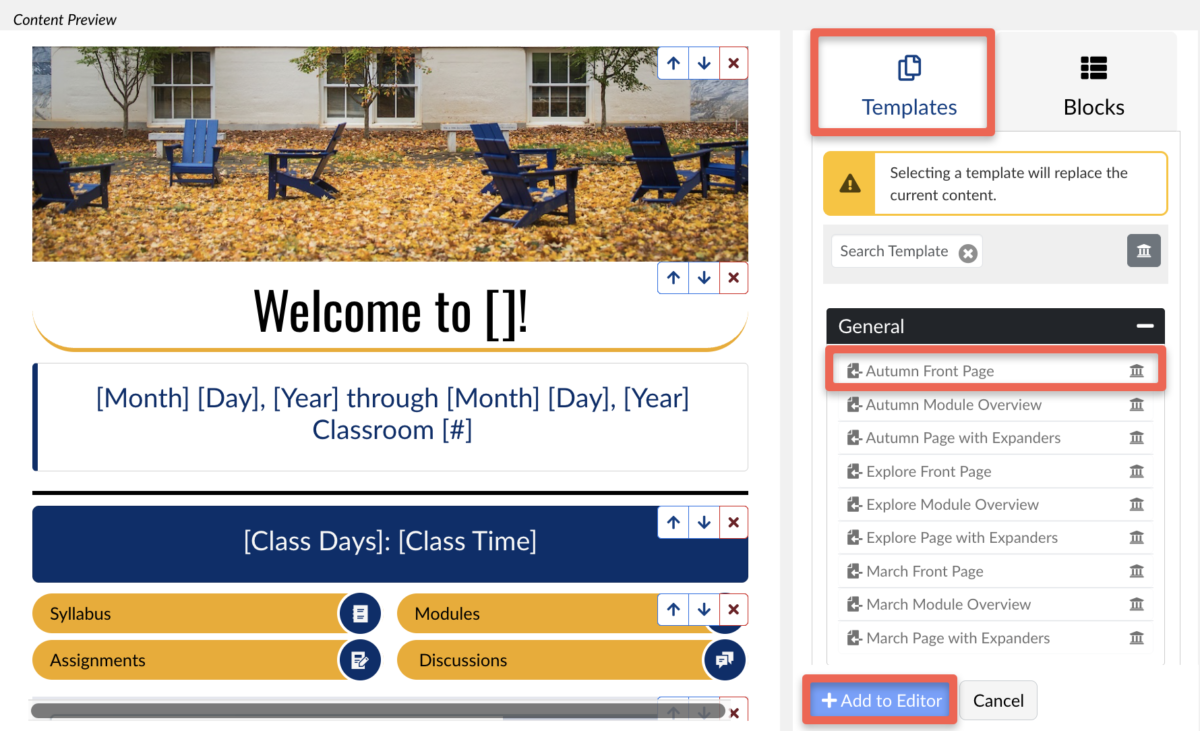
The Teaching & Learning Technologies team has been busy this Fall semester developing templates for instructors to use in preparation for the Spring 2026 semester. There are three sets of general course templates available, each consisting of a front page, a module overview page, and an expander page. These template sets, each with Emory colors clean design elements, are grouped into three “themes”—Autumn, Explore, and March—to help you identify module overview and expander pages that match the front page.
Front Page
To help you kick off the spring semester, we added several homepage templates in the QuickStart Wizard. Quickly create your homepage without needing to launch the DesignPLUS Sidebar, and thank us later for the time saved.
Module overview page
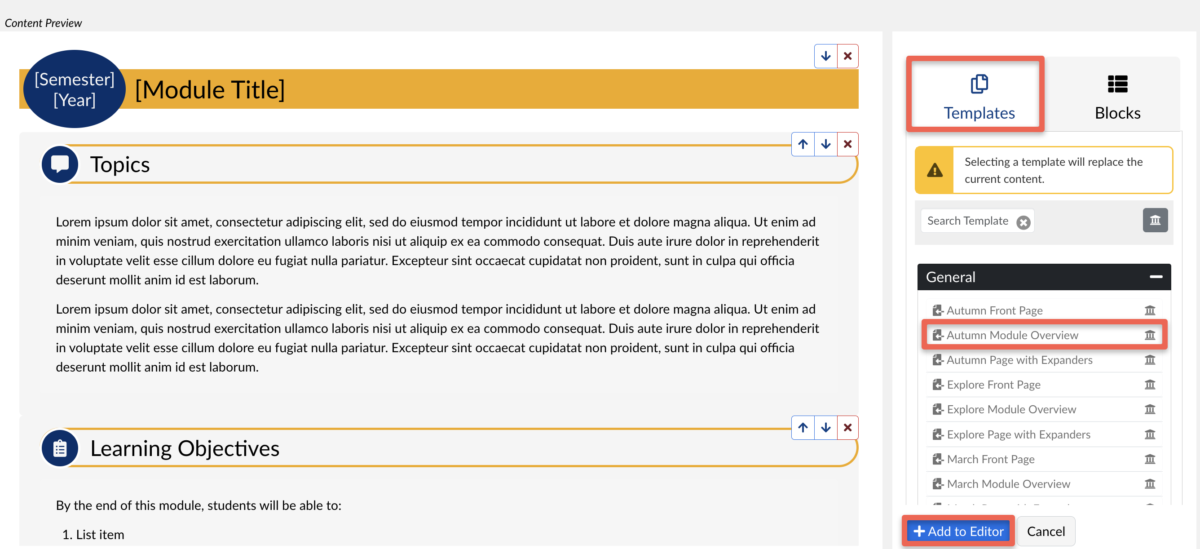
Each module should begin with a module overview template. This page can be used for outlining learning objectives and requirements for each module. Offering this information will help engage students and set clear expectations for the rest of the content in the module.
page with expanders
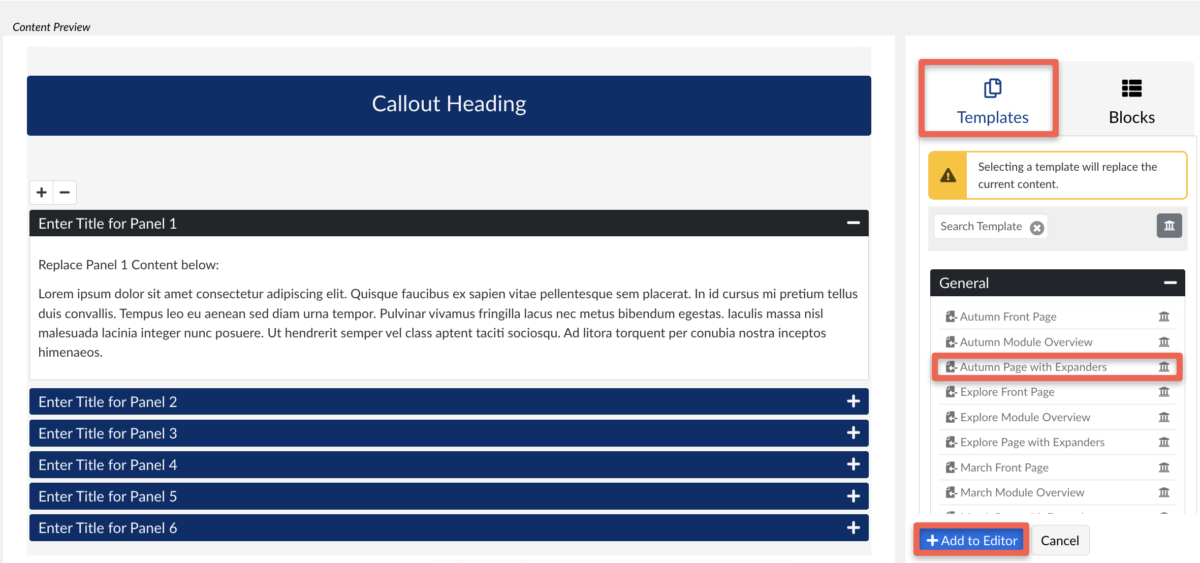
If you have a section of content that needs better organization, consider using this template. It allows you to compress content on a page, so students can step through course material one section at a time.
Interactive Templates
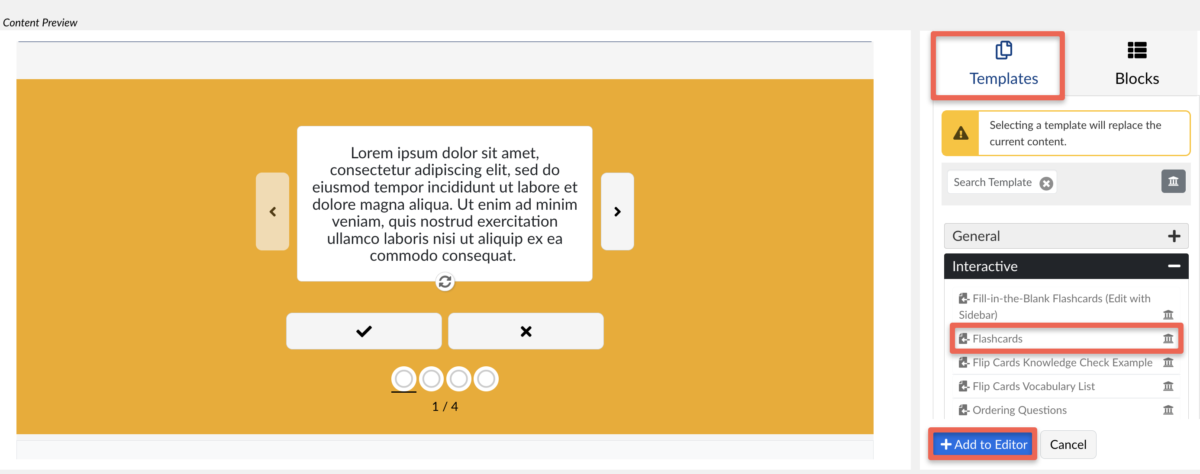
We added several interactive templates for instructors to help students understand key concepts. These templates assist with knowledge checks and can be used to enhance student engagement. The QuickStart Wizard interactive templates are not integrated with the Canvas gradebook, so they are best thought of as study aids for students.
Here’s an example of one of our Flashcard templates that you can use to help students check their understanding of terms to prepare for exams:
We’re Here to Help
We will continue to provide new features to enhance your experience. Stay tuned for updates and tips on using the QuickStart Wizard more effectively! Contact us to schedule a consultation if you have questions or need help using the DesignPLUS QuickStart Wizard.