
If you forget your password and need to reset it in PitchBook, follow the steps below. If you need to create a PitchBook account, see this blog: Creating a New PitchBook Account.
IMPORTANT: Do not use the “Recover your password” or “log in with SSO” options shown in error messages. To properly reset your password through PitchBook:
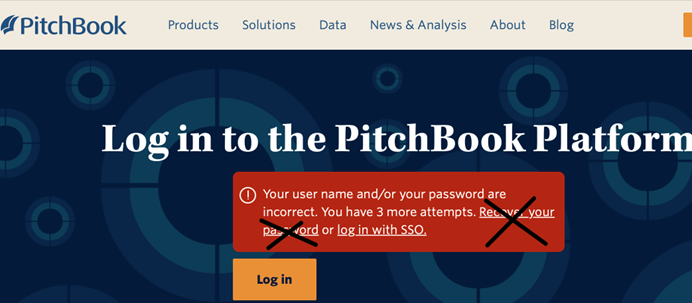
Step 1: Do NOT use the reset links on the login error screen
If you see this error message, do not click “Recover your password” or “log in with SSO.” These options will not work for Emory users.
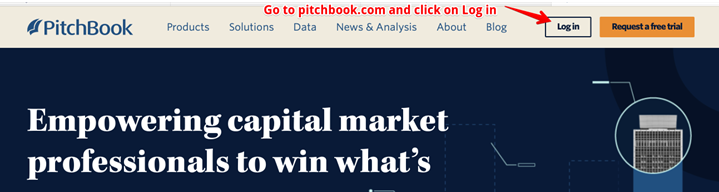
Step 2: Go to pitchbook.com and click “Log in” in the top-right corner
This will bring you to the correct login screen to start resetting your password.
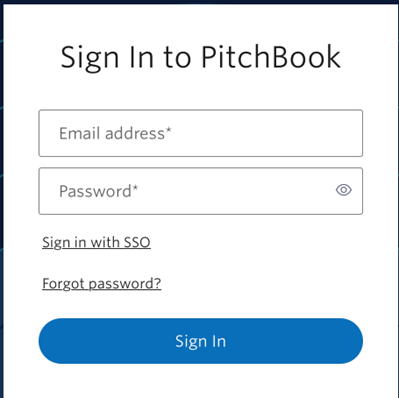
Step 3: Click “Forgot password?”
On the login screen, do not click “Sign in with SSO.” Instead, enter your Emory email address and click “Forgot password?”
Step 4: Check your email
You will receive a password reset email. Click the link inside it to reset your password.
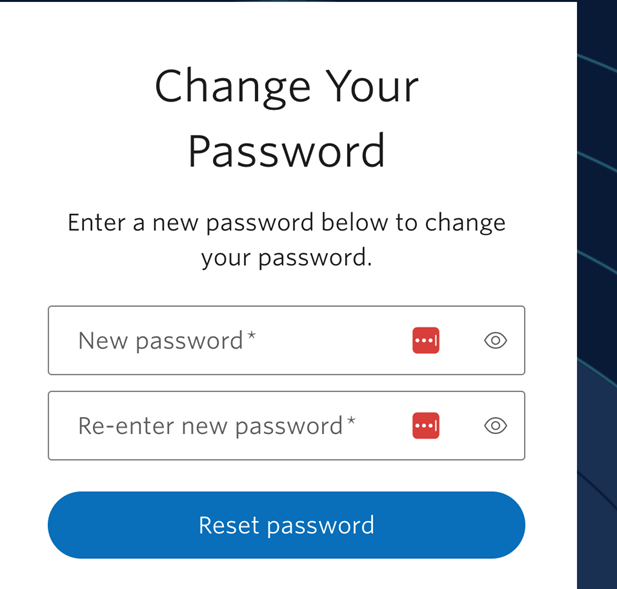
Step 5: Enter a new password
You will see the screen below. Enter your new password in both fields and click “Reset password”.
Step 6: Use Emory’s Proxy Link to Log In
Once your password is reset, do not log in from the reset screen or pitchbook.com.
Instead, use this link:
https://proxy.library.emory.edu/login?url=https://emory.pitchbook.com
Log in with your Emory NetID and the new password you just created.