VoiceThread LTI is a Learning Management System (LMS) integration that operates inside of Canvas.
Now, what does this mean?
As an instructor at Emory University, you are able to use VoiceThread in your classes without ever having to leave Canvas!
Adding VoiceThread to Your Canvas Course
You can add VoiceThread to your modules as an activity or as a graded assignment. All you need to do is select “External Tool” whenever you are adding anything new.
Here’s how:
Modules Section
Navigate to the “Modules” area of your course.
Find the module to which you’d like to add VoiceThread and click the plus sign to add new content.
Select “External Tool” from the menu.
Select “VoiceThread” from the list of tools.
Name the link if you’d like.
Save.
Click on the new link in the module and proceed to the instructor support page for details of what to do next.
Graded Activities
Navigate to the “Assignments” area of your course.
Create a new assignment.
Name the assignment and write a description if you choose.
Under Submission Type, select “External Tool”.
Click on the “Find” button.
Select “VoiceThread” from the list.
Save.
Click on the new link you’ve just created, and proceed to the instructor support page.
Some practical uses…
Basically, VoiceThread is an Audio/Visual Discussion Board. In a previous post, we discussed how to use it as an alternative to traditional discussion boards.
After posting your message, students are invited to engage one another on it. Then, they can ask questions, make comments, and interact with your material through text, voice, images, or video!
Often, it is difficult to fill the social gap in online learning. VoiceThread provides an opportunity for students to engage online learning content in a seminar-style format. As an instructor, you can use it for asynchronous presentations, class discussion, or engagement on any supplemental material.
Miro is an online whiteboard/canvas that is frequently used in the corporate sphere. It is provided in both free and paid versions, and has many different features and uses. Miro, being so versatile, provides a vast array of features that cannot all be discussed here. However, this blog is provided as an introduction to Miro and can be used as a starting place for further research.
Getting Started
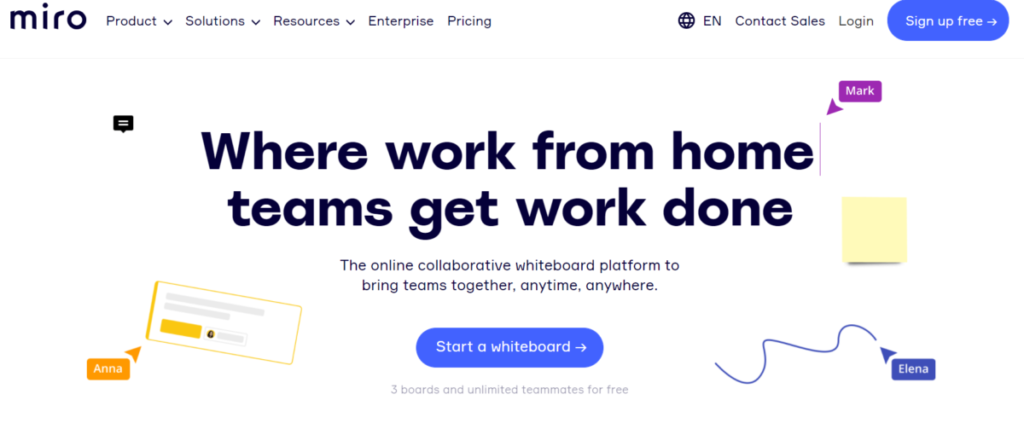
The first step to using Miro is finding it online at miro.com and creating an account. As previously mentioned, Miro offers both a free and a paid service with different features and limitations. The home page for signing up for Miro should look like the image below.
Miro Sign up page
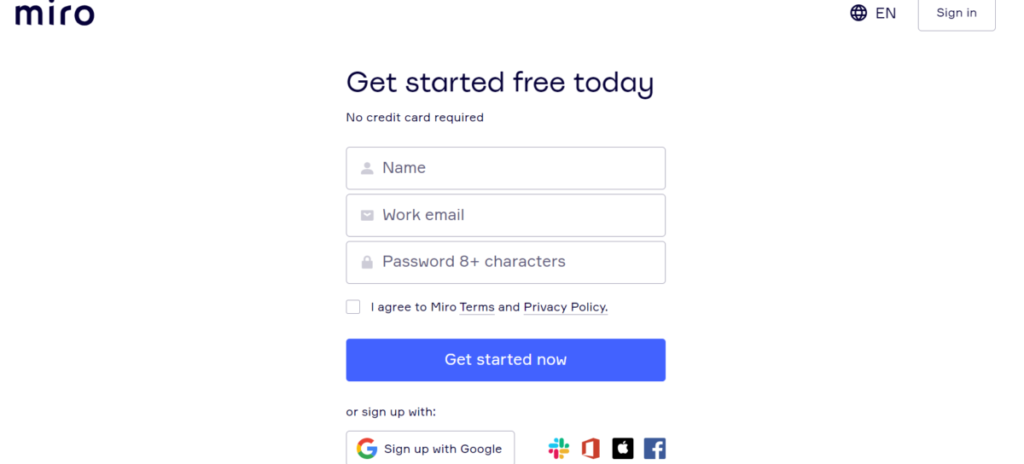
After selecting “Sign up free” in the top right hand corner, you will be taken to a page that looks like the image below. One can sign up manually or using Google and other options displayed at the bottom of the page. Notice that this option is for the free version of Miro. One has the option to upgrade to the paid version after creating a free account.
Navigating the Miro Dashboard
Miro home dashboard
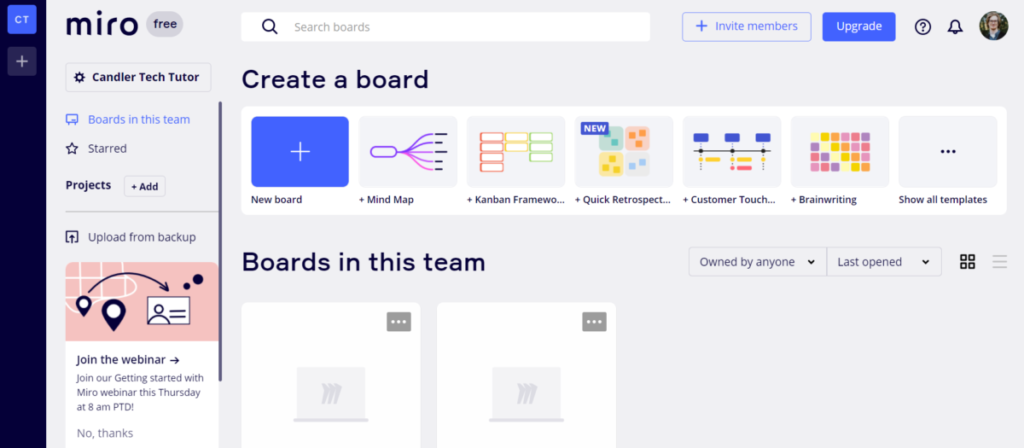
After making an account, the Miro dashboard (shown above) should appear. As you can see, there are many options and functions available for use on the dashboard. One can give their “team” a name (in this example, my team is named “Candler Tech Tutor”, which can be seen under the Miro logo), invite members to your team, see boards being worked on by this team, and much more. However, the most important function that is provided is the creation of a newboard, the first step in utilizing Miro.
Creating a New Board
Templates
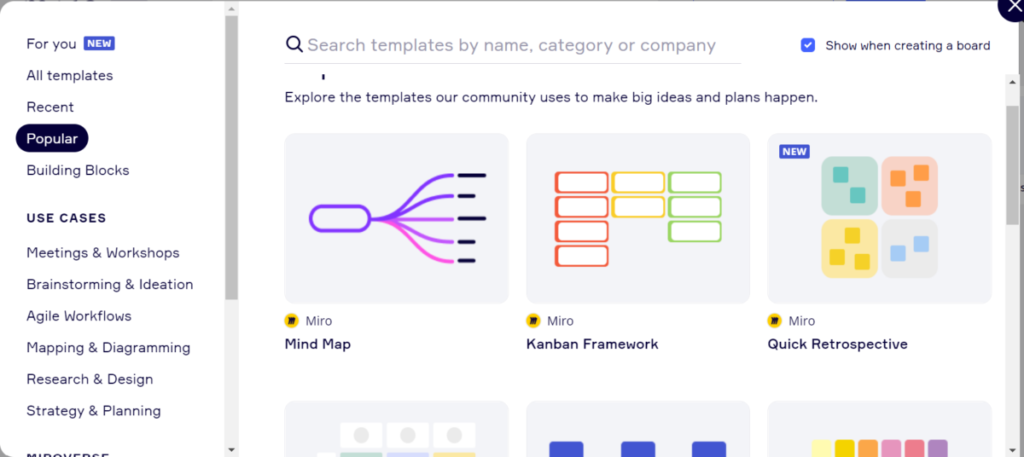
Before creating a new board, it will be helpful to look at the templates provided. To view the templates, one can click Show all templates in the upper right hand corner of the dashboard screen, under “Create a board.”
Miro Template Options
After selecting Show all templates, the screen shown in the image above will appear, showing you different template options. To use, preview, or find out more about the template, hover your mouse over the template of interest to view and select what action you wish to take. Each template offers different functions and is suited for particular tasks and activities. For this example, Mind Map will be the template used.
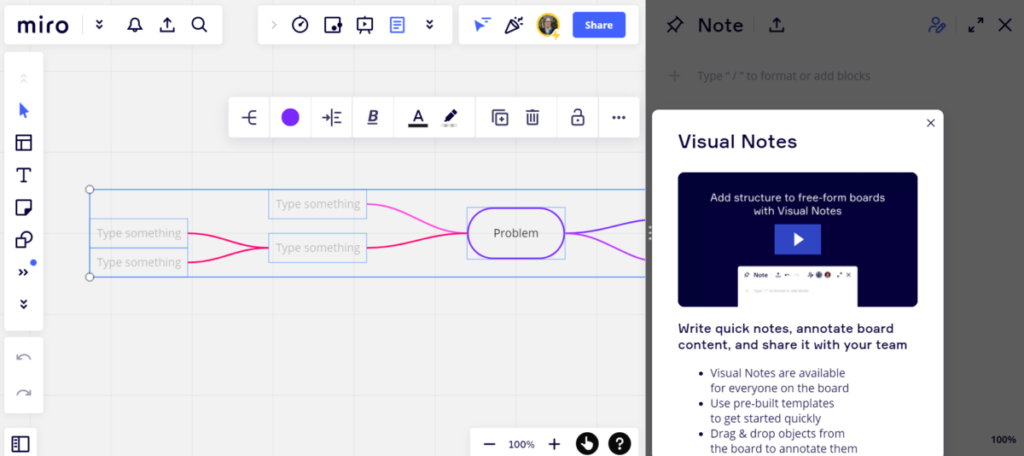
Mind Map New Board Screen
After selecting which template you will be using, a page similar to the one in the above image should appear on your screen. Since an instructional video about Visual Notes is provided at the start screen of a new board, how to use Visual Notes will not be covered in this blog, and the following example images will be shown having exited out of the Visual Notes function bar.
Using a New Miro Board
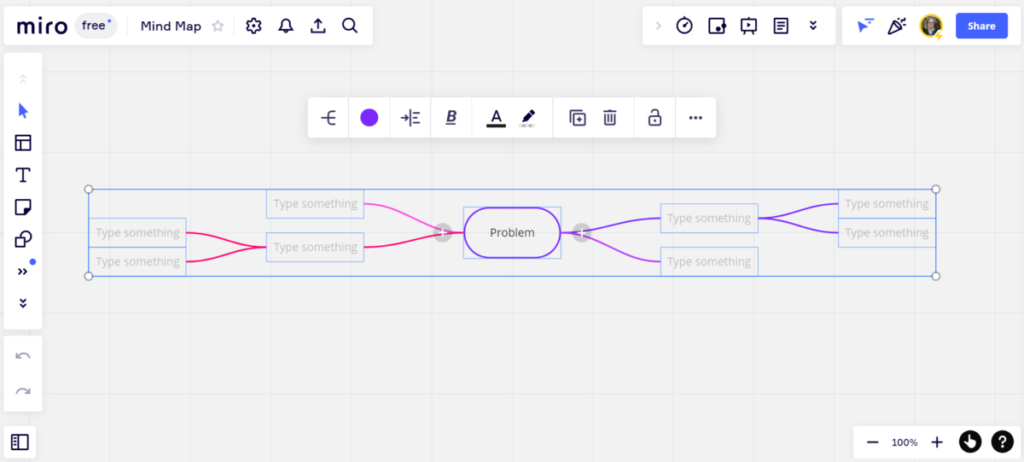
Having selected a template for your new board and exiting out of Visual Notes, you are now ready to start adding content to your new board. A blank Mind Map board will look like the image below:
Blank Mind Map Board
Each template will provide moveable cells and text blocks for inputting content. One can add text, images, or links into these cell blocks and draw arrows or other connections between them. The left-hand column shows a multitude of different actions and tools one can utilize when designing and editing a board. Another important feature in Miro is the ability to zoom out in order to connect multiple charts and pages of information.
Final Thoughts on Miro
Miro offers users a multitude of resources for collaboration and organization. While new users may be overwhelmed at first glance by the breadth of options provided by this online whiteboard, many will find it to be one of the most versatile applications in their organizational tool box upon learning how to use its basic functions. Overall, can be utilized in a time saving and efficient manner for any user.
Padlet is an online virtual bulletin board offered in a software-as-service format. This virtual bulletin board has many uses, as its allowance of multimedia uploads provides a massive amount of functional dexterity. This blog explores Padlet by giving a general overview of what the service is, how to use its basic functions, the pros and cons of the service, and what its possible applications might be.
A) How to use Padlet basic functions
1) Creating an Account/Signing in
In order to get started, one can simply Google search “Padlet” or go to padlet.com in a browser. At this point, one should sign in with an account. It should be noted that any email may be used to create an account, and that post attribution only functions for those who are signed in. Being a software-as-service, it has a free or “Neon” option (allowing for three boards) and a paid $10/month “Platinum” option (allowing for unlimited boards).
2) Navigating the Dashboard
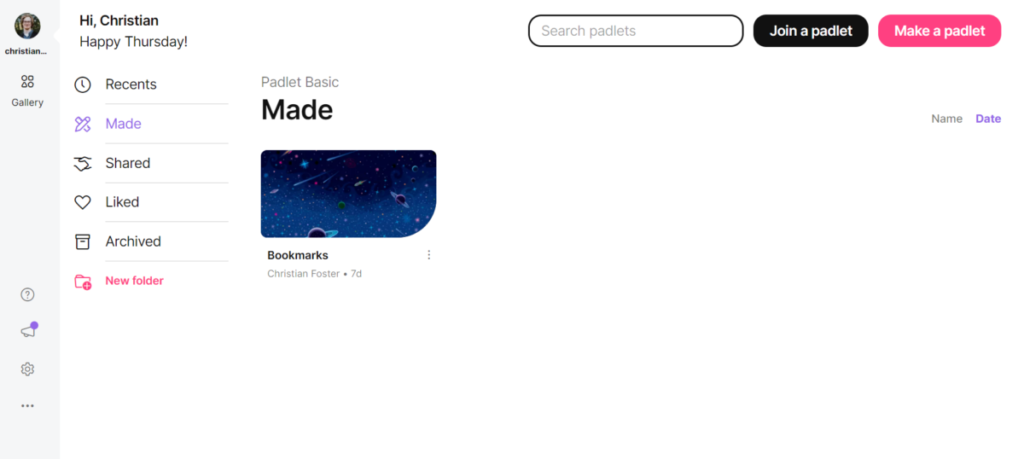
My Padlet Dashboard
In the upper right hand corner of the dashboard, one will see two options: “Join a padlet” and “Make a padlet.” On the left side of the screen, one will see different options for accessing different padlets that may have been shared or recently worked on. In order to make a new board, click “Make a padlet.”
3) Creating Padlets
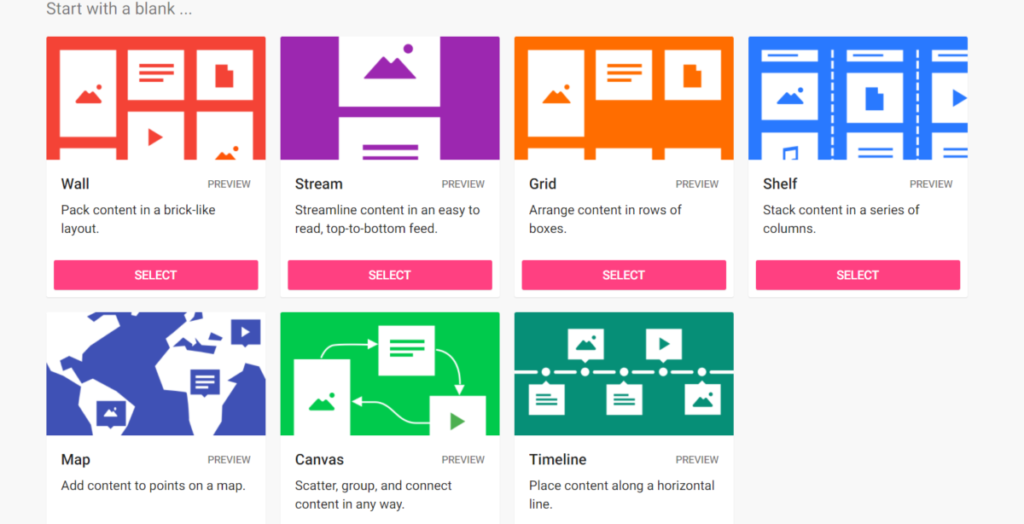
Options for styles of boards to create.
After clicking “Make a padlet”, this screen with options for the type of padlet you would like to create. Each format allows for organizing posted content in different ways, allowing one to tailor their board to their specific needs. The “Preview” option can be used if a person wishes to see what each format looks like before committing to a particular style. For this example, the “Wall” format will be used.
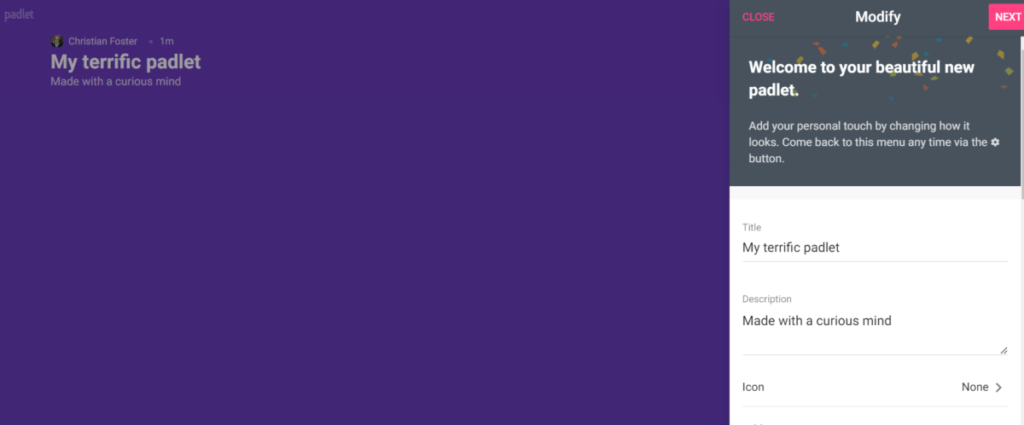
Wall Set-Up
After selecting a format for your padlet, you will be given options under “Modify” for customizing and naming your board (see above image for example). Scrolling down on the “Modify” column, one can find options to change background color, font, post attribution, and other options worth experimenting with. Once you are done, click on “Next” to finish your set up.
4) Making Posts on Padlets
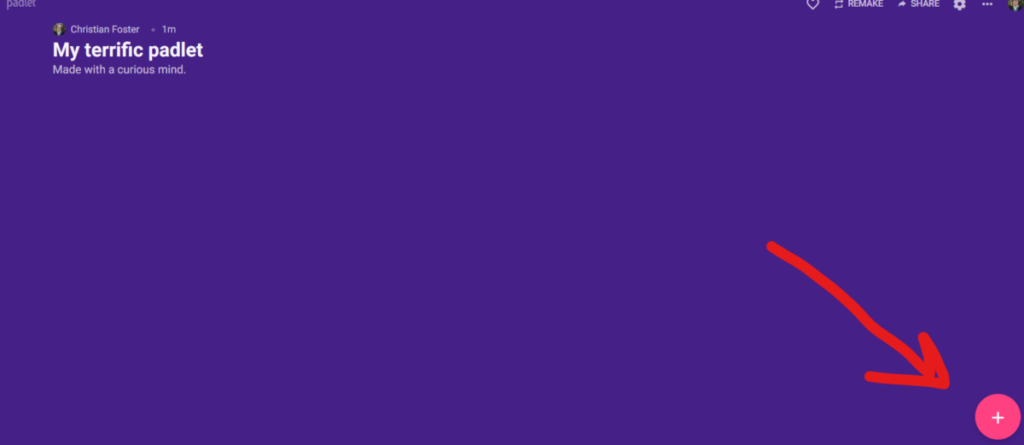
To create a post, click the “+” icon in the bottom right hand corner.
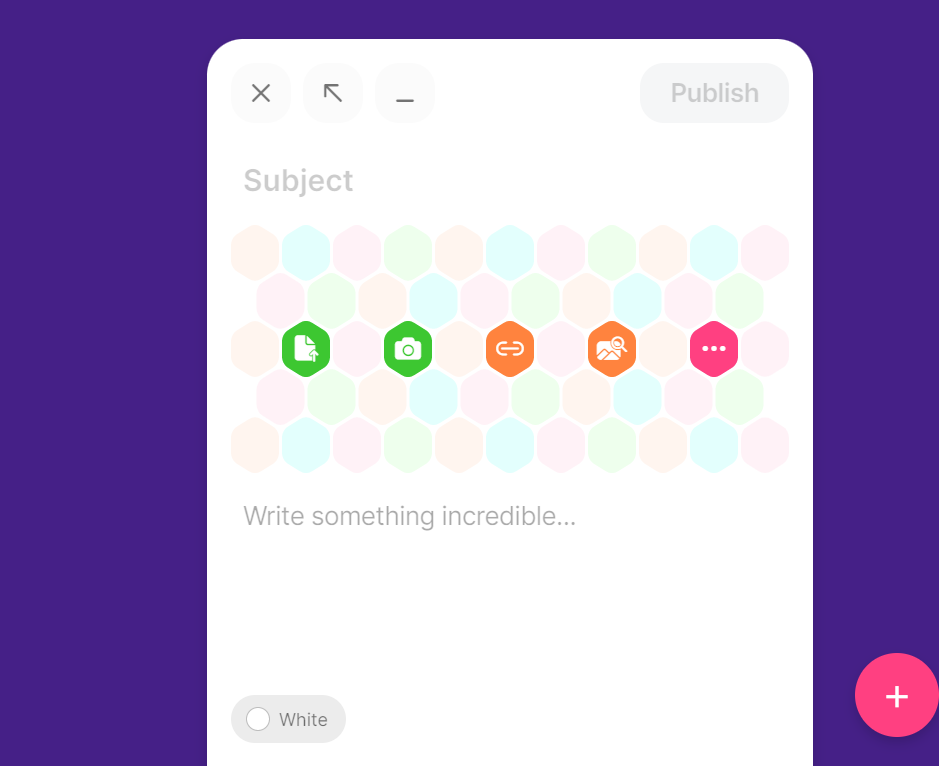
After pressing the “+” icon, this screen will pop up.
Once the above screen appears, one can choose to insert an image, link, or other media, to title the post, and write post content. Once one writes their post, click on the “publish” button to publish a post.
B) Best Practices
Padlet can be utilized in many ways by educators and students. Some examples are:
In conclusion, Padlet has many different uses, and is a software-as-service virtual bulletin board. The tool allows for multiple forms of media to be utilized in posts, and is operable using any form of email. Educators and students alike can benefit from its intuitive and streamline nature.
Peer reviews are assignments where students receive another’s paper, make comments and annotate, and return to its original owner. They’re a tool used by faculty to improve student writing, feedback skills, and to clarify learning goals and assignment details.
However, they’re not always so clear. Through several conversations with students, we’ve learned two important things:
Students need clear expectations.
Rubrics are essential.
With this in mind, the Office of Digital Learning has prepared the following student guide to Canvas peer reviews. We hope this will help you to understand how Canvas can mediate the peer review process.
Introduction to Canvas Peer Review
Your instructor may ask you to do a peer review once you’ve submitted your assignment on Canvas. In order to locate the peer review, you can use the following steps:
Click on the Assignments link in navigation.
2. Click the title of your selected assignment.
3. Under Assigned Peer Reviews, you will see the review assigned to you (sometimes anonymous). Click on the student name or review available.
4. To download the submission, click the name of the assignment. For annotating the document within Canvas, select View Feedback.
5. From this window, you can add comments, highlight (and even write!) directly to submission.
To leave a comment, click on the “ballon” icon.
For highlight, click on the next icon of a “pen.” From here you can also leave comments similar to Microsoft Word.
To add text, click on the “T.”
For writing, on computer or via an iPad, use the “paint brush” icon.
6. If you’ve been assigned to review via a rubric, you do not have to annotate the document for it to be considered “completed.” However, please follow your instructors instructions on how to complete the peer review! To use the rubric, click on the top right corner, “Show Rubric.” When you are finished, click the “Save Comment” button.
7. Once you have completed your annotation, rubric, etc., feel free to share an assignment comment for the entire document. This is often required if there is not an attached rubric. This is where you can re-upload your comments if you chose to annotate the document outside of Canvas.
8. Don’t forget to click save!
We’re Here to Help
We hope this student guide has been helpful. If you get stuck, please do not hesitate to reach out to candlerdigitallearning [at] emory [dot] edu. We would be delighted to help you!
Traditionally, peer review involves bringing papers to class, swapping, and finding time in class to read and review them.
Now, we have Canvas LMS!
A peer review assignment enables students to provide feedback on another student’s assignment submission. Peer reviews are a tool that allows communication between students and can help students master the concepts of a course and learn from each other. Peer reviews can be assigned to show student names or display anonymously. And all of this can be done via Canvas Learning Management System!
This post covers how to use Canvas peer review some essential best practices for effective peer reviewing. You can also scroll down to watch our workshop on “Peer Review and Pedagogy”.
How to assign Canvas peer review
Canvas will facilitate for you. With Canvas peer review, you can assign reviews to students, receive submissions, and let students annotate papers all inside of the platform.
Here’s how:
Create a new assignment.
Add your details. Your title and description.
Choose submission type “online.”
Decide file types to accept.
Pick manual or automatic assignment.
If the settings in the Assignment Edit function appear confusing, you can always do Canvas peer review after you’ve saved.
In instructor view, navigate to the right hand side of the chosen assignment. The peer review function can be found here. See the image below.
To manually assign
Once in the Canvas peer review area, select the students you would like to assign reviews to by choosing the plus sign next to “Give [student] submission to assess” – demonstrated in the image below.
Then, select your student.
When manually assigning peer reviews, students can complete their assigned peer reviews without having to submit their own assignment first. If you require students to complete their own assignment before being able to complete a peer review, you must automatically assign peer reviews.
To automatically assign
To automatically assign students, first go to the right side of the same page as manually assign.
Select the number of peer reviews to assign and let Canvas do the rest.
Here’s a caveat:
Canvas will assign peer reviews at the date and time set (or the default Due Date) only to those students who have submitted the assignment. Students that do not submit the assignment or submit after the assigned date (or default Due Date) will not be assigned as peer reviewers.
Always, it is good practice to allow some “wiggle room” by setting the “Assign Reviews” date/time some hours after the “Due” date/time to allow for late submissions. Or to go back in and manually assign those that did not turn in before the Due Date.
Student perspectives on Canvas peer review
As an instructor, it is important to make your students aware of how to use these peer review functions in Canvas. In the next post, follow along our Canvas Peer Review Guide for Students. We will present the student perspective with peer review. Feel free to send this to your class!
It forces them to engage with writing and cultivates better critical thinking skills. Instead of simply reacting to a prompt, writing well means that students are able to question their own work, values, and commitments.
2) Encourage students to collaborate
Encouraging students to collaborate throughout the full process gives them opportunities to “learn from one another and to think critically about the role of writing in the course at hand.”
Collaboration in the classroom translates to collaboration in the world. Whether it’s in industry, non-profit sector, or the congregation.
3) Clarify the goals of the assignment
Students can assess the requirements themselves and clarify the goals of the assignment. Instead of focusing on how they as individuals can meet the requirements, students are forced to focus on the learning outcomes. This prevents distractions of simple grammar and cohesion. It also reduces anxiety!
4) Provide field-specific insight into writing
“Peer Review provides students with contemporary models of disciplinary writing.” Students know how to write from their bachelor’s degrees, but for many it is their first time studying religion or theology.
Even in a Master of Divinity program we see differences in writing styles for the different subfields. An essay for History of American Christianity is going to be different than a paper on Psychology of Religion.
5) Empower self-editing through peer review discussion
This process allows students to clarify their own ideas. Having the opportunity to workshop their writing with classmates allows the student to explain their work out loud.
Often, this improves their writing by being more concise or having the chance to elaborate using different words than their original draft.
6) Create opportunity for professional development
Peer review provides professional experience for students. While the Master of Divinity is a professional program, peer review makes room for more academically-oriented students. Students planning for doctoral work need this exposure to improve their writing for journals and publishing.
This process also mimics the main collaborative model of the real world. Simply, students need to know how to give and receive feedback. Period.
What are students saying about peer review?
So, let’s do a review of peer review.
Our office interviewed current masters students about their thoughts on the topic. Here are the top 3:
“Having a rubric from the professor on what students are looking for in the assignment is crucial for classroom accountability. Using a rubric on top of the editing features allows both parties to have several ways of understanding the assessment they’ve been given back from their classmates.”
“Often it seems the goal with discussion boards is for classmates to review and critique each other’s work alongside creating conversation. Utilizing the peer review for critique rather than using Discussion Boards allows the student to understand the expectation a bit more clearly.”
“In my experience, the best style of critiquing and reviewing classmates’ work is the consistency that comes with being assigned a partner or group to work with throughout the entire semester.”
Quick Answer: Rubrics, Clear Expectations, and Consistent Pairings
Concluding thoughts on peer review
Traditionally, peer review involves exchanging papers in class, in person. It involves finding several sessions of class time in order for this process to occur. At Candler, we use the Canvas Learning Management System. In the next post, we provide some best practices for using Canvas LMS to facilitate the peer review process.
I recently spoke with a colleague who was curious about academic twitter (#AcademicTwitter). She mentioned how it has become a repository of resources. Everything from book launches to news articles – it’s so valuable. Our conversation shifted, however, once we began talking about Twitter best practices and how to use it.
For many academics, Twitter is home to a wide range of audiences. You’ve got colleagues and peers, casual interests and associations, even family and friends. Navigating this mix can be quite a challenge – especially considering the additional concerns of your role in the public eye.
Now:
This becomes trickier when academics are in the fields of theological and religious studies. It seems once all eyes are on you, there are certain standards and expectations placed on you that would not ordinarily be on a casual social media account.
Put simply, Twitter is a tool. And in this post, I hope to give concrete examples of how to interact and use the app and how it can be an invitation for you to do public theology.
Navigating the Tool
As academics, we can talk about our projects and fields of study all day long. That is what brings us joy and research is why we do what we do. I have no issues promoting pieces that I have written or sharing online things that excite me.
So, why would an academic twitter account be any different?
The hesitancy surrounding Twitter for many academics are the practices that Social Media Managers use daily. Questions like:
How do I write posts?
When do I share them?
Should I link to something or post a picture?
Why use a hashtag?
Like any tool, it may take time for you and Twitter to become acquainted. But once you do, you will be able to use it easily and often.
Simon Fraser University Library posted an article that listed the following reasons why academics should use Twitter:
Make your research more accessible, across disciplines, sectors, and to the public
Contribute to dispelling mis/disinformation
Network
Build awareness about issues, needs, concerns, and opportunities
Inspire action
Learn
Recruit (students, staff, and study participants)
Here’s how:
1) Provide sources for your content
As academics, we know that citing our sources is the most important aspect of our work. The internet is no different. Just because it is online does not mean it is not someone’s intellectual property. A great example of this is when you are tweeting about what excites you around your research, provide a link to an article you have read recently if it is open source. Try letting your followers know what and who you are reading, and how they too can access these resources.
2) Engage with your peers on academic twitter
Engaging with your peers is crucial. It is about networking! Through social media, you can easily connect with so many in your field that would otherwise be very difficult. You can do this by responding to tweets, congratulating your peers on recent publications or awards, and retweeting!
Another way of engaging with your peers is through hashtags. Hashtags are one or more words without spaces that following a number or pound sign, such as #AcademicTwitter. Using hashtags categorizes your tweet among everyone else who has tweeted using the same tag. For example, “I’m working on a project that I cannot wait to show you! #ReligiousHistory #Writing”. This tweet would be now grouped with both #ReligiousHistory and #Writing tags.
3. Tag, Tag, Tag
A third important aspect of academic twitter is interacting with other accounts. In order to engage with your peers, a reply tweet automatically begins with the account’s handle. For example, “@TwitterAcademic congratulations on your recent publication! Can’t wait to read it!”
Tagging is essential as it provides an opportunity for you to promote your own content while citing, acknowledging, and “pitching” it to others. A perfect example is to always tag your publisher, editor, etc. If they have a Twitter account. This lets them know how much you appreciate their work on your project and that you know how to be actively engaged on social media – a requirement now for publshing!
4) Recognize your social location
It is important to remember our social locations in relation to rank, tenure-track, race, gender, sexuality, and socio-economic status. Tenured positions are hard to come by, and many active Twitter academics are in adjunct or lecture positions. Simply put, think about the impact of what you’re tweeting, to whom, and why – all before you tweet.
An Invitation to Public Theology
Quick Answer: What is Public Theology?
Public theology is a term often associated with those who publicly do theology. They explore concepts, engage new ideas, and critique harmful theologies in real time, in the public sphere.
Public theologians are pastors, preachers, academics, and oftentimes your students. More and more, Twitter is becoming a hub for seminarians to process what they are encountering in class and where many learn to find their public voice.
As a School of Theology, by default we are given a platform to speak on events happening in the world around us. The steps in this post encourage you to build a community of followers that allows you to speak about what is in your heart to wide audiences – who now have a proven track record of engaging and sharing your content. By citing your work, engaging your peers, tagging all the relevant accounts, and crafting your message considering your status and influence, you can maximize your reach to the public.
Twitter provides scholars in the fields of religious studies and theology an accessible and open invitation to Public Theology.
For many classes, Discussion Boards serve as the primary means of assessing a student’s participation and preparation for class. Did they do the reading? Are they paying attention in class? Many faculty who teach online use discussion boards as a way to continue the conversations of the class outside of the classroom. This article is titled “More Discussion, Less Bored” as a play on the disconnect we’ve found between student and faculty perceptions of discussion boards and to provide creative alternatives to discussion boards.
What are students saying about Discussion Boards?
Our office surveyed several students and wanted to share some important takeaways. Now, it is important to remember the comments are directed to discussion boards, not the the assignment.
“I feel like [discussion boards] offer no incentive to participate in a meaningful manner, and quickly become arbitrary when a student is falling behind or struggling to manage the stresses and challenges of coursework.”
“It often times feels like discussions that could be had in the classroom are substituted with discussion boards in order to allocate more time for lecture and lift the burden of mediating conversation from the professor.”
“If a student is being graded for word count minimum, but not for content; if a student is contributing to a discussion, but is not graded for responding to others; and if a student is writing a thoughtful response, but the professor is not responding back in the same forum—where should the student’s priorities truly lie?”
Preparation is all about determining what are your learning goals and why is discussion the best way to meet them?
It is essential that you are open with your students about how these online discussions work and why they matter. This includes the grading criteria and the medium too! Leaving out this aspect has led to many students’ experiences having never participated in a meaningful and productive online discussion.
A final component of your preparation should include establishing community norms with your students. What’s the temperature of your classroom community? What are your expectations? For example, how do you plan to respond to microaggressions? What does it look like to reach out to a student who has been open and transparent about their traumas and hardships with the class?
2) Presence
Your presence in online discussion is vitally important. Wabash encourages your presence as one that is both sustainable and supportive.
A sustainable presence means that you do not over promise engagement, but meet the standards you set for yourself in the syllabus. You could say:
“You will hear back from me x times per discussion board”
“I will respond to your comments with a video recording response.”
Your presence should also be supportive, as you show genuine interest in what students say, learn, and offer to the conversation.
3) Preferences
Preferences mean that you provide students choices for how to demonstrate their learning in an online format. This could be through Zoom conversations. You could even have “selective participation” where students can choose where to participate in discussion.
4) Privacy
Privacy in not always obvious. Let your students know when and how they will be recorded. Tell them where the recording be shared? You can also allow students to opt out of video discussions if it is uncomfortable.
More Discussion, Less Bored: Alternatives to Discussion Boards
VoiceThread
VoiceThread is a tool that supports audio, visual, and textual conversations simultaneously, with the potential to replace discussion boards, serve for asynchronous lectures, and support universal design principles. VoiceThread can fill the social presence gap often found in online learning engagement, all without the pressure of synchronous timing.
Examples
1) Language-based classes – recording vocabulary, practicing short reading out loud
2) Alternative to Canvas Studio – put in an asynchronous lecture and have all students respond with a question they have about the material
3) Resource sharing – ask students to link to other things, engage in a mode that works for them!
OneNote
OneNote is an application within the Office 365 suite that all Emory faculty, staff, and students have access to. It is an app that allows you to organize with three different levels, tag, write/draw, add multimedia, clip articles to save, and share with others.
Examples
1) Weekly reflections – have students create their own notebooks and share them directly with you so that you can see their reflections on class discussions, readings, and content.
2) Group Discussion – have students curate culturally relevant resources and collaborate together by providing comments, thoughts, reflections, audio/visual or multimedia responses to the resource
3) Language courses – a tool to do shared annotations of texts and parsing sentences together
ScholarBlogs
ScholarBlogs is an Emory instance of WordPress and is now available for those who intend to use the technology for teaching and research. It offers a platform for public and private blogs and web pages capable of displaying text, images and video. Users can also apply themes to customize their blogs and utilize select plugins that provide additional functionality. It’s a great way for your students to get some basic web design/editing under their belts and to encourage them to consider their role as public voices in the conversations around religion, faith, theology, race, historical analysis, etc.
Digital Learning Workshop: Conversations beyond the Classroom
Check out our workshop on Asynchronous Discussions below. Have a thought? Leave us a comment!
The role of a tech producer is to be the facilitator of the online classroom on behalf of the faculty member. Under the supervision of the Instruction Content Developer in the Office of Digital Learning, Tech Producers will assist in a range of technical and pedagogical tasks including Zoom support for teaching faculty and other IT service support such as Canvas.
Tech Producer Responsibilities
Ensure recording of every class session
As needed classroom facilitation duties such as breakout rooms, screen-sharing, and student polling
Live troubleshooting for Zoom connectivity issues
Posting class recordings to Canvas modules
Contacting Candler IT as necessary for larger issues with faculty hardware, or referring students to Student Digital Life
Tech Producer Spotlights
Karina Aragon-Buchanan
“This semester I have the honor of tech producing for a DMin course! I have love getting to hear from pastors located all over the U.S. and learn alongside the incredible Donghyun Jeong and Chantel Heister. It truly has been a wonderful experience so far. It’s made me realize just how important a quality, online learning experience is.”
Justala Simpson
“My role, as a tech producer, is really cool! I am afforded the opportunity of assisting professors in maintaining the flow of the classroom environment. This includes uploading class recordings, creating breakout rooms, and troubleshooting technological needs of students and faculty.
One of my favorite parts of being a tech producer has been working with the Doctor of Ministry program. As I, actively discern next steps in my theological journey, it is truly a blessing to glean from their experiences and the work that they are engaging.
Online learning can be challenging, but I am so grateful that I can play a small role in making it more manageable.”
Cerise Barton
“My name is Cerise Barton and I am a rising 3rd year MDiv student. I’ve had the pleasure of serving our digital community as a zoom tech producer this year.
The zoom space has so many possibilities to make learning exciting, engaging, and limit fatigue. It’s been an honor to partner with our professors and help with innovative delivery of curriculum.
It has also been an honor to help fellow colleagues learn their own systems and get the most out of our personal zoom accounts. Simply tips like saving the chat, maneuvering full screen & gallery views, hiding self-view, and a few others help to personalize and maximize the zoom learning experience.
Most of what I get to do is assist entrance & exit to the zoom space, breakout rooms, polls, and trouble shoot when audio/video issues occur. But the best part is being exposed to curriculum, professors, and other colleagues in classes I would not otherwise get to participate in.“
If the pandemic has shown us anything about education, it is that learning can often become a passive experience. This is true for both face-to-face and online instruction. Students will get into a “TV watching” mode and not actively engage in discussion.
Now, this is not intentional and it is not something to assign blame. It is just how things are.
Polling tools in the classroom offer brief moments of interaction that require students to think and respond. Not in a high stakes way, but inviting students to a level of engagement that you typically do not see in the Zoom classroom.
This post will cover two tools: Poll Everywhere and Mentimeter and recommend some best practices for using them in the classroom!
Scroll down to watch a Digital Learning Workshop on these tools.
Poll Everywhere
Poll Everywhere is an interactive polling tool with a huge variety of visualized responses. Students respond by clicking on a shared link or by texting in a code.
It is a web-based app that allows for live polls in real-time. Participants can view it online in a web-browser or embedded into powerpoint.
Poll Everywhere is best used synchronously, live in a Zoom room or live during a face-to-face lecture. Anyone with the shared link can participate anonymously and provide answers to questions, input in voting, or just tell you how they are doing!
Best of all, Emory University has an Enterprise-Level Account to Poll Everywhere. Unlimited polls, premium templates, etc. All you need to do is sign in using your Emory email account!
Mentimeter
Mentimeter is an interactive polling tool with multiple question types and visualization options. Students can respond by entering in a unique code at menti.com or using a shared link.
It can be used asynchronously to poll students before or after a class meeting, or synchronously during a live Zoom session.
Anyone with the unique code or shared link can respond to mentimeter polls – no purchase or account creation needed.
Creative Uses for Polling
1. Getting to Know You Games
These are great to use for ice-breakers, first day of class, etc. Ask students their favorite foods, movies. Ask for Netflix recommendations. Ask “what are you reading right now outside of class?”
Students will know that you care about them as people, not just absorbers of knowledge AND you just might get some great recommendations along the way!
2. Knowledge Checks
Knowledge checks can be a great asset to your class as you can ask students to write down one or two elements they gleaned from your lecture or the class discussion.
You can use polling tools for open-ended responses. Giving students time in class to reflect on what they have learned or to potentially ask further questions is so important for checking in with students and making sure what you want them to know is getting through.
3. Temperature Checks
Sometimes, you as a faculty need to do a check-in. See how your students are doing? See if they need anything? What is great about these polling tools is that they have the option of being completely anonymous.
Check on your students and encourage them to be truly honest in their responses. For instance, use this prompt with an open-ended template: “How are you doing, really?” Use this as an opportunity to invite persons with specific answers to contact you after class if they want to. This removes the pressure and creates an environment of care in your classroom.
4. General Engagement
For general and creative engagement, think about how to get students directly engaged in lectures. Invite them to answer questions on whether or not they agree with an argument from the author of the reading being discussed. Then, ask for a few of those on each side to explain why they agree or disagree.
Tools for Engagement Digital Learning Workshop
The following video is our workshop titled “Tools for Engagement.” In this video, we cover both Poll Everywhere and Mentimeter as well as some exciting applications of these tools!